Business Portal Payout Guide
Step 1: Access the Payouts Dashboard
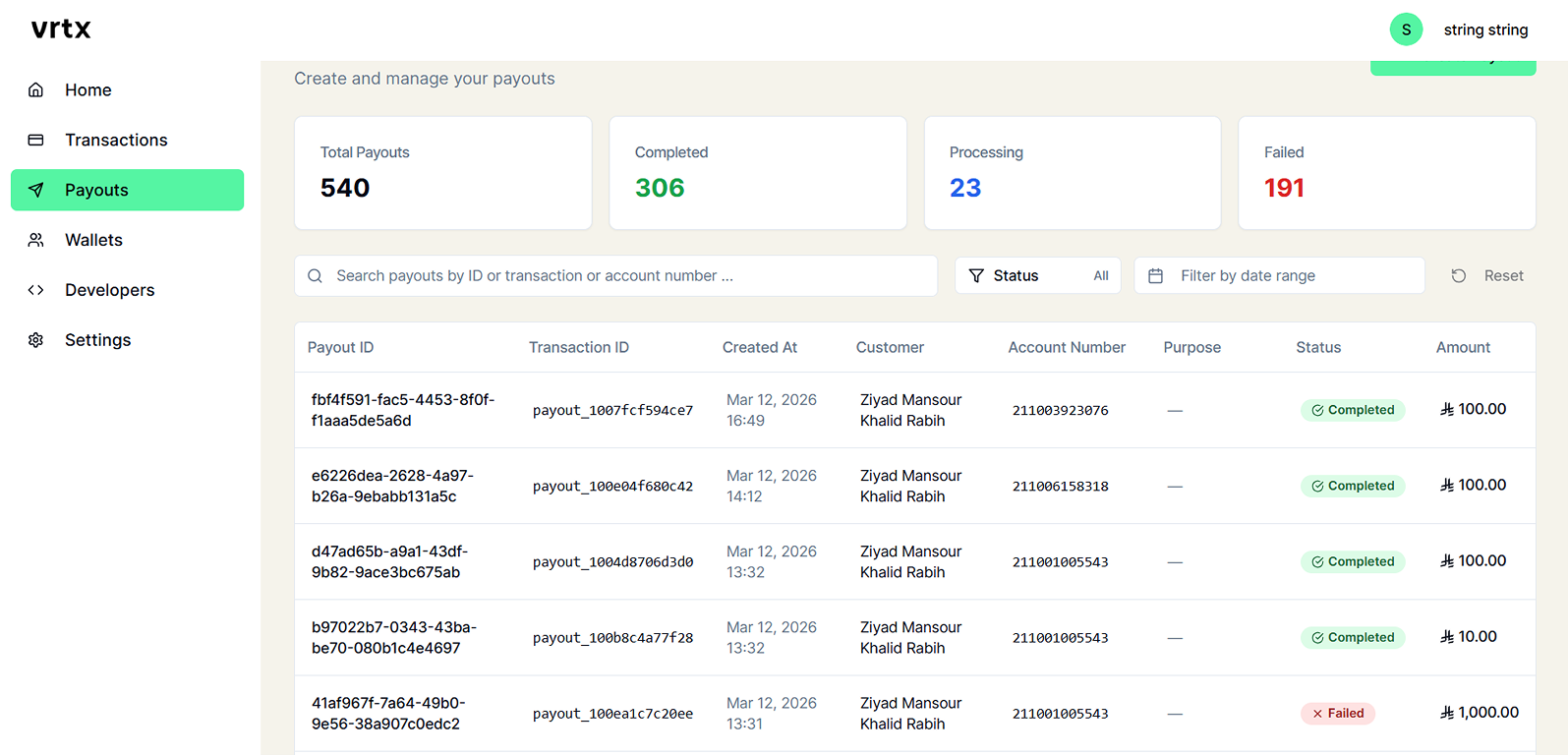
Navigate to the sidebar and select Payouts to open the payout management interface. 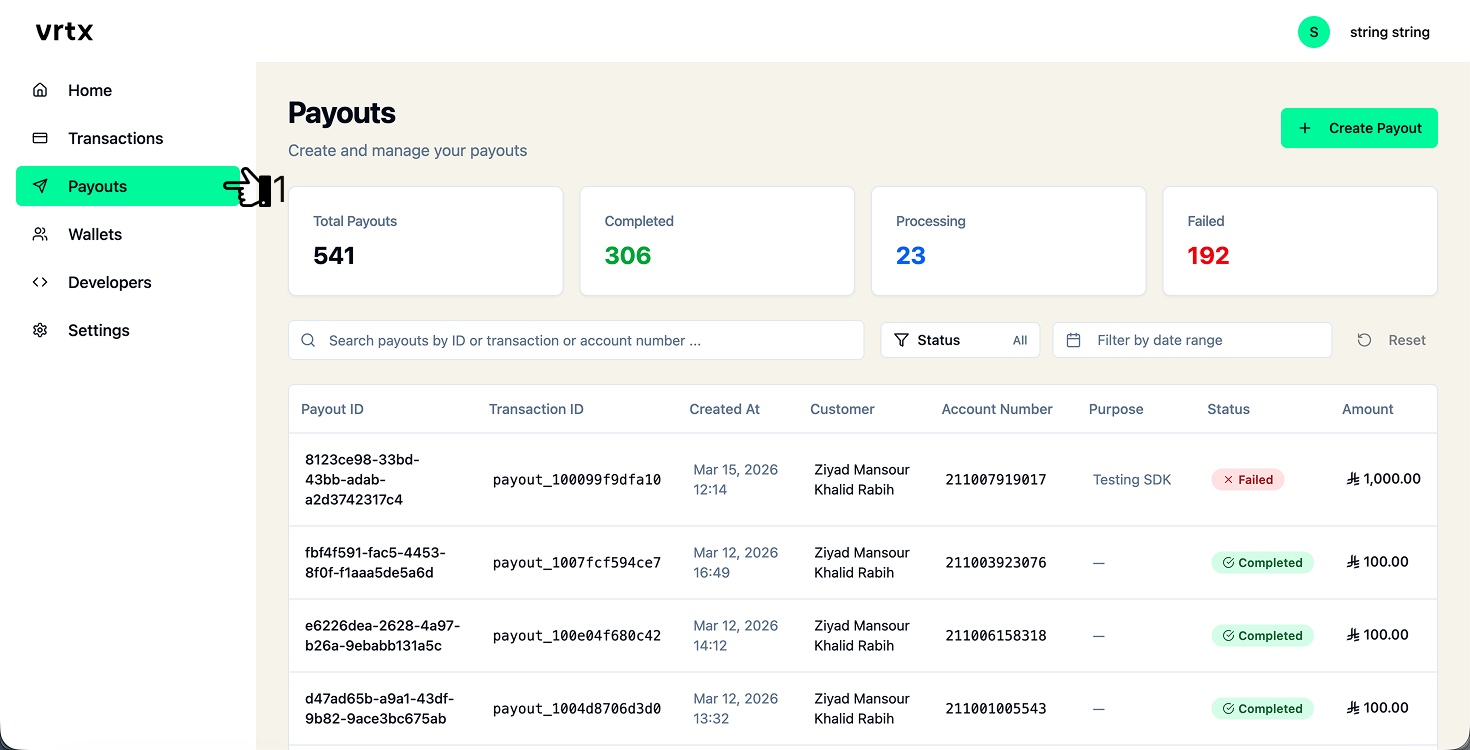
Step 2: Initiate a New Payout
Select Create Payout to start a new transfer request. 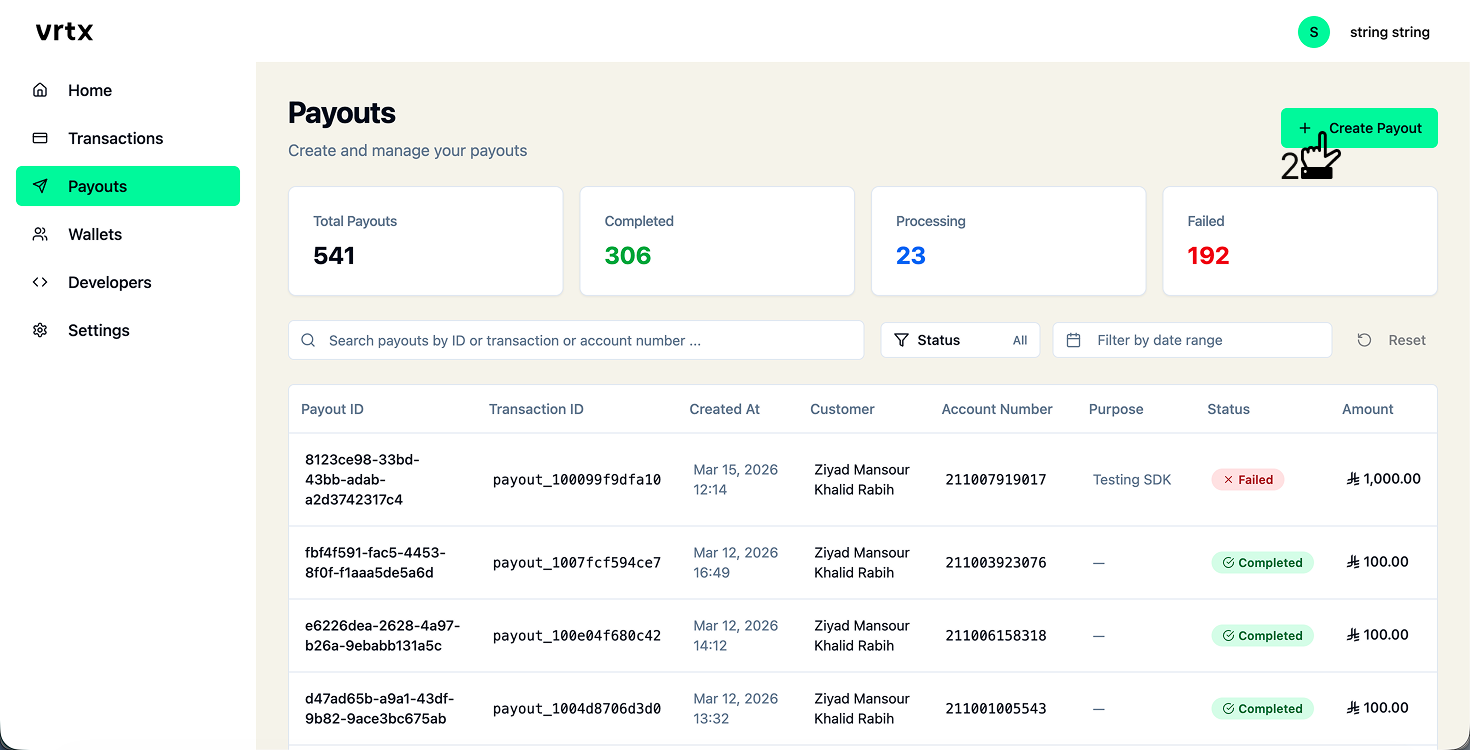
Step 3: Enter Recipient Details and Amount
Choose the receiver identifier (for example, Mobile Number), enter the recipient's details, specify the transfer amount, and optionally add a payout purpose. Select Continue to proceed. 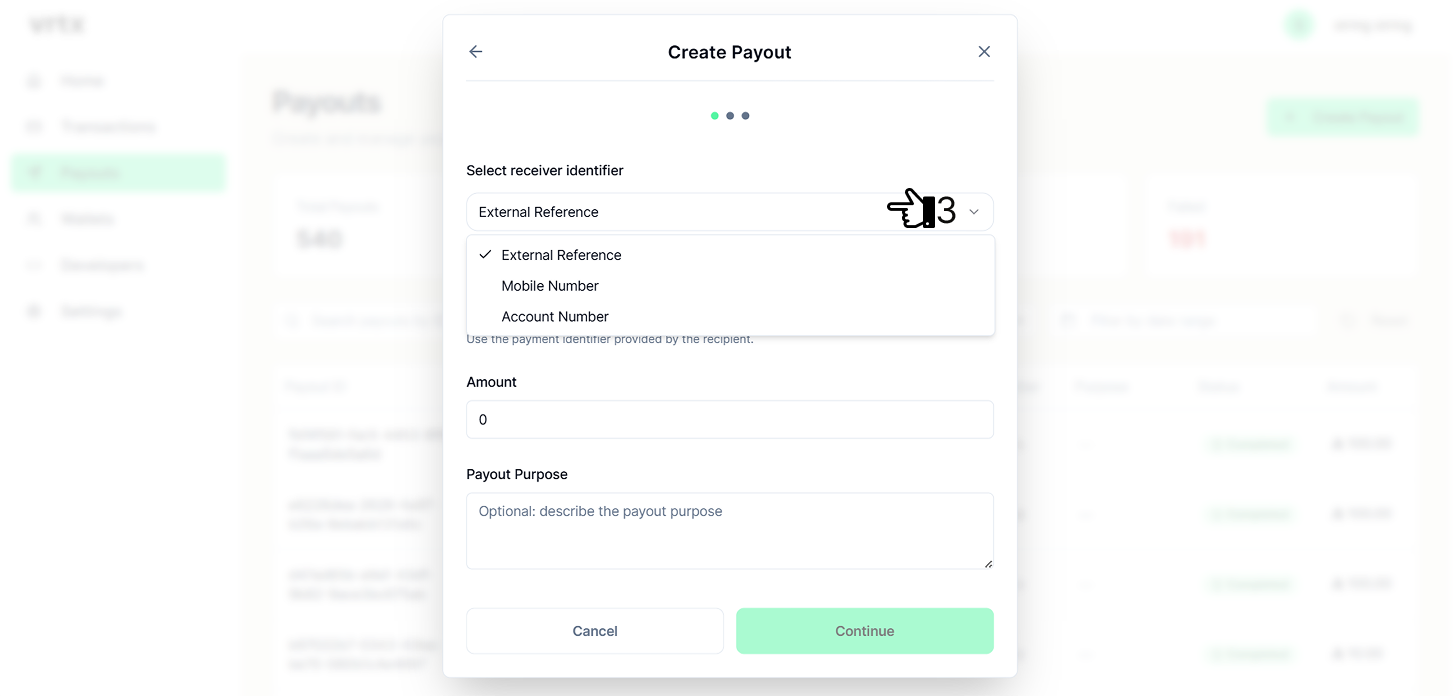
Step 4: Review and Confirm the Transaction
Verify the payout details, including the recipient number, transfer amount, available balance, and remaining balance after the transaction. Select Send verification code to authorize the payout. 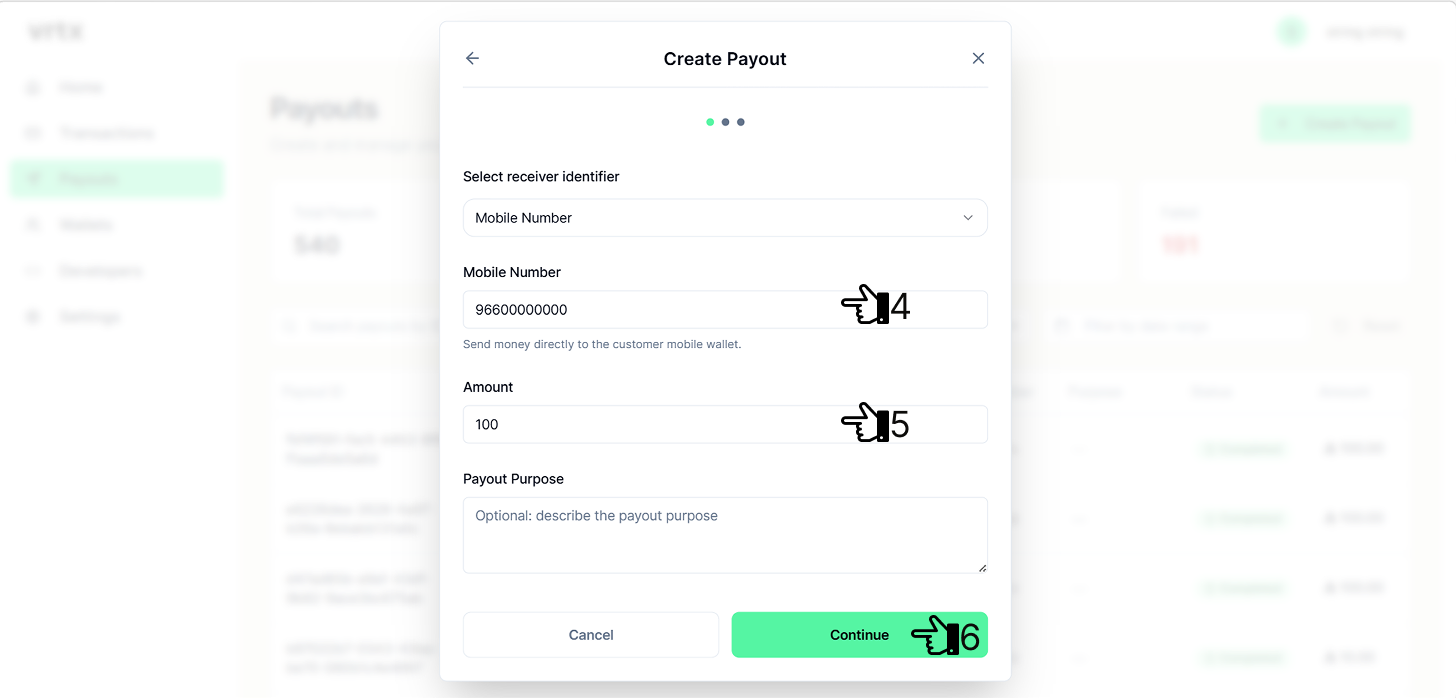
Step 5: Complete Security Verification
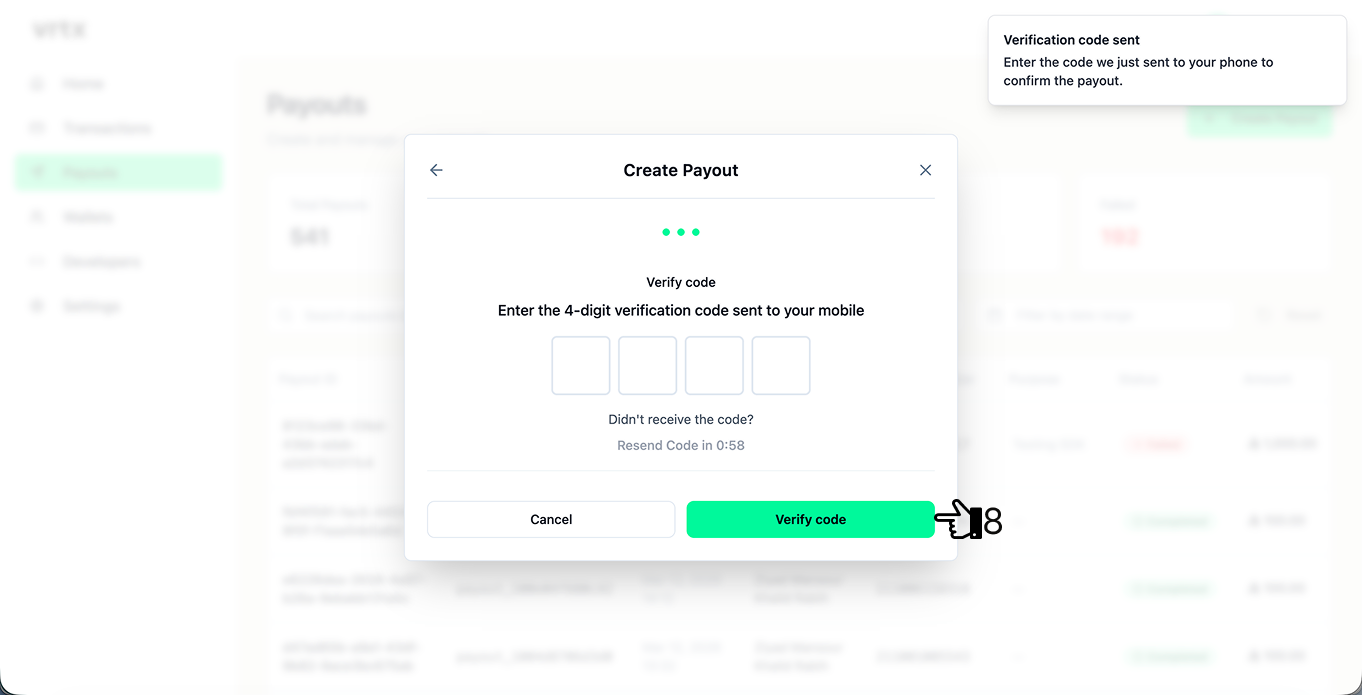
Enter the 4 digit verification code sent to the registered mobile number. If the code is not received, select Resend Code. Select Verify code to submit the request. 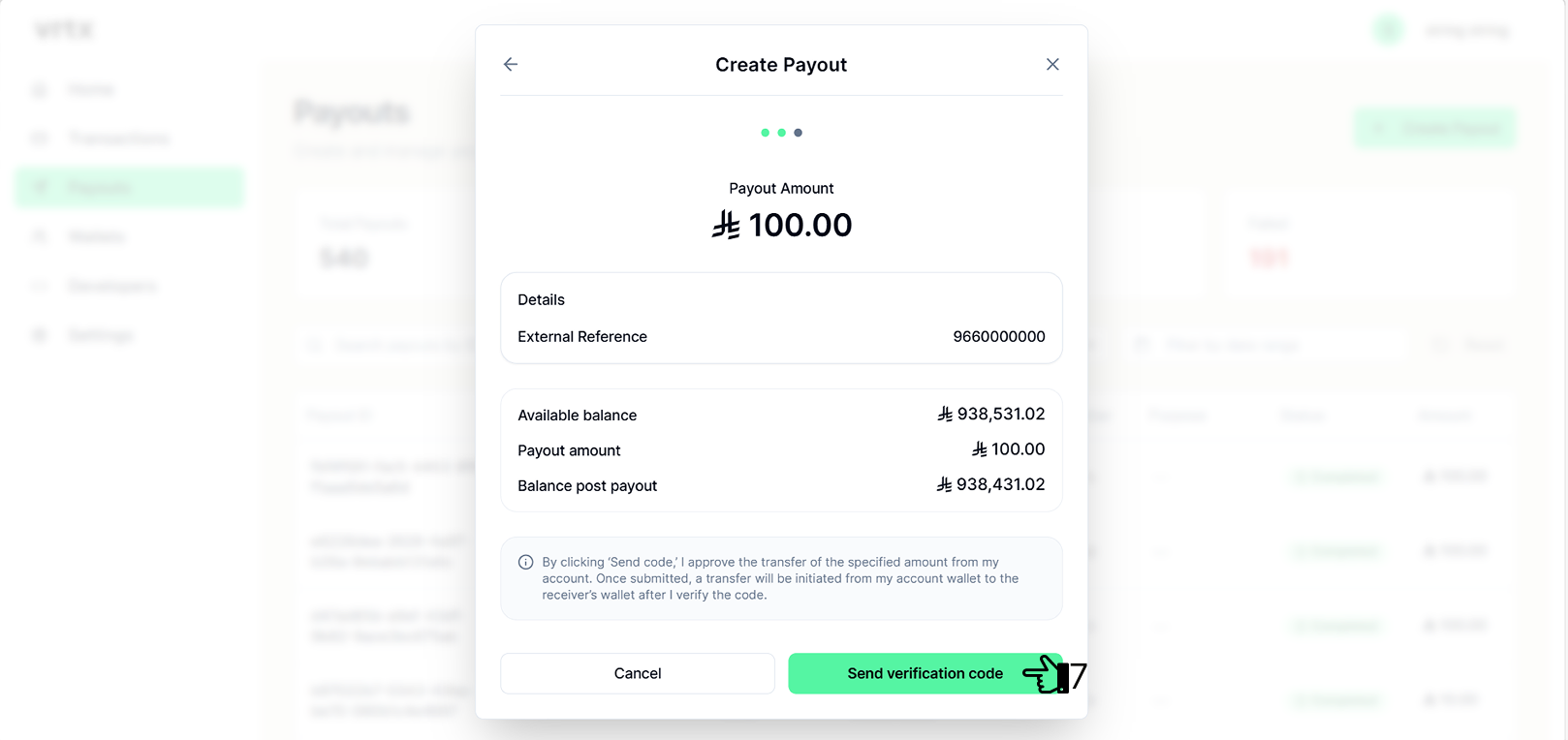
Step 6: Monitor the Payout Status
After submission, the payout is processed and can be tracked from the Payouts dashboard:
- Processing: The request is under processing
- Completed: The payout was successful
- Failed: The payout was unsuccessful
Final Outcome
If the payout is completed, the funds are credited to the recipient’s wallet and the sender’s balance is updated automatically. If the payout fails, no funds are transferred and the balance remains unchanged.